![[List View, with Menu selected]](list_view.png)
Previous: Introduction, Download, ..., Getting Started Contents Next: The Menus, Handling Variations
PilotGOne starts off in "list view" mode, which works like an enhanced Memo Pad, and gives access to all of the Memos in their categories in the normal way. There is more information about the features of "list view" mode, and what can be done in "list view" mode to manage files and games (thanks to Harry Fearnley).
The screenshot shows "list view", with Menu selected.
The menu options –
Sort,
Commands
(Generate First Line ..., Erase all first lines ...), and Options (
Board Preferences,
List Preferences,
About), are discussed elsewhere.
![[List View, showing mini-info window for selected game]](mini_info.png)
You can use the PageUp and PageDown buttons to scroll the list. To view an existing game record: select a memo, and the record will be highlighted.
If you have not previously selected, in List Preferences, "Show mini info view" as your default, then you can go straight to viewing the game. Otherwise, you will see an extra mini-info window like thhis screenshot.
Note that the highlighted "First Line" is, in general, different from the Name field – this can be useful in managing your game records.
"Open" starts viewing/editing the game; "Cancel" to carry on
browsing the list.
![[A Professional Game]](pro_game.png)
This is an example of a an old game record - a professional game, between Yu Bin and Cho Hun-hyeon. We supply the SGF game record that PilotGOne is displaying.
If you want to record a game then tap the "New ..." button.
This will open a dialogue that allows setup of various
options for a new game – see the
diagram below.
![[Create new Game]](create_new_game.png)
Enter the information -- you will automatically be in uppercase for the first character of the appropriate empty fields. You can also edit any of these items, at a later stage, by doing "Menu"/ "Game"/ "Game Info".
The fields "Name" (game name), "Date", "Size", "Black", and "White" can all be used for sorting/ searching. The value of "Komi" is used automatically in "Score" mode. Most fields (i.e. except Black/White Ranks, Times, and Game Comment) are used in the mini-info view in List view mode.
When finished, tap "New" to enter game view,
and start recording.
![[New Game with Menu]](new_game_with_menu.png)
At the start of a game, with "Menu" selected, the display will look like this screenshot.
When you hold the stylus on, or near, any stone or empty
intersection, PilotGOne shows you what you have selected
by showing a "cursor" – a reverse-video version of what you
have selected.
Once in game view, you will see a go board surrounded by various gadgets (see screenshot, above). Some of these gadgets allow you to do things – [button]; other ones just give you information – [info]; others do both – [button/info]. We will start at the bottom left, and go anti-clockwise. First, there are the gadgets along the bottom edge of the board - an example might look like this:
Done << < (99a) > >> K9 black play
Using "Next" crosses in View mode may be more useful for moving between variations.
If you have got Goto Memo set to "on" (the default setting), then tapping on the move number drops you into MemoPad with this move selected. After doing this, to go back to the game, you have to tap on Home (Select Application), and choose PilotGOne again – you will return to the same node (i.e. the same point in the game record).
The co-ordinates have letters (A-H, J-T – "I" omitted) going across the board from left to right, and numbers (1-19) going up the board. The bottom left is therefore "A1", and the top right is "T19", while the middle of the board is at "K10".
![[Mode Menu]](mode_menu.png) This is a pop-up trigger (an upside-down triangle) – on its right you will
normally see the current mode – see the list of options, below. The mode
controls what happens when you tap on the board.
This is a pop-up trigger (an upside-down triangle) – on its right you will
normally see the current mode – see the list of options, below. The mode
controls what happens when you tap on the board.
When you tap the pop-up trigger, you will see a menu like that in the screenshot.
The options are
This can be very useful if you made a mistake in recording a game. If the mistake was very recent, then it may be quicker to ignore this facility, and simply to "undo" (backspace-delete) the last few moves, and then replay them all correctly. If the mistake was many moves ago, then there is a quick way to get to the move before using this facility – select "view" mode; tap on the problem stone to rewind the game to that point ( "Goto Move" has to be switched on for this to work); change to the correct colour (Black or White – the opposite colour to the flashing stone) Play mode; tap on the empty point where you want the flashing stone to be, before selecting "Change last stone position". This is easier than it seems.
Warning: If you use this to change who is to play next, then do "undo" repeatedly, the program may get confused!
![[Marks/Labels on the board]](marks.png)
Either tap on an empty point, or tap on a stone with no mark, or label.
You can add a mark – you will be given a choice of Triangle, Square, Circle, and (diagonal) Cross – these 4 marks are always shown properly, as they are.
You can also supply an alphanumeric character of your choice – this may be an alphabetic character (a-z, A-Z), or a digit (0-9).
On large boards (13x13, and 19x19) all of these characters are normally displayed in the same way – as a "+" – see the top left of the diagram. To see what these alphanumeric characters really are, you have to "Zoom In".
![[Zoom In on Marks/Labels]](marks_zoom.png)
When "Zoomed-in", alphabetic characters (a-z, A-Z) will be shown in lower-case (a-z); all other characters, including digits (0-9), will be displayed as "?".
This diagram is the Zoomed-in version of the top left of the diagram above.
Note that, although you can enter "a" and "A", for example, as different characters in the SGF record, they will both display as "a". To avoid further confusion, PilotGOne will not let you enter characters other than alphanumeric ones.
It is
probably best to avoid numeric characters, because you will not be
able to see them properly – better to use alphabetic characters,
instead.
Naive Japanese style scoring is used - PilotGOne needs to be told which are dead groups, both to know which stones are prisoners, and to know which empty points can be counted as territory.
To mark a chain of stones as dead, simply tap on one of the stones in the chain – all stones in the chain will now appear 'dimmed' on your screen. To undo such a move, tap another time on the same chain.
Note that you will also have to give the program some extra help – e.g. if Black will eventually have to play a defensive move inside their territory, then you should do an "add black" on that point while in "score" mode. In any case, you can not mark points as being "neutral" points. This means that, in rare cases, there may be errors in PilotGOne's score. For example, in a "seki" with 2 one-eyed Black groups, and one zero-eyed White group, Japanese counting gives no points for either side, whereas PilotGOne counts this as 2 points for Black.
The scoring information (which groups are dead) is not normally stored in the SGF file, so you will have to mark groups as dead each time you want to calculate the score. However, if you want to make this information permanent, you can use the menu command "Game"/ "Save Dead Groups Info", which will add DD marks to the SGF file (and remove previous DD marks if there were some).
Now we look at the gadgets along the right side of the board. Here's an unlikely view -- with annotations:
^ Go up/back to Previous variation
b Variation label
v Go down/forward to Next variation
[x] Next/Marks - not highlighted, so "Next" is not selected
Z Zoom - capitalized, so zoom is on
C Comment - capitalized, so there is a comment at this node
r Remember Current Node - only available in view mode
g Goto Remembered Node (shown, so there is a remembered node)
E Annotation (very even!)
B # Black captures (value below)
10
W # White captures (value below)
5
Starting at the bottom, we have:
When creating a new comment, you will automatically be in uppercase for the first character.
When creating/editing a comment using PilotGOne, you are limited to 1024 characters. If PilotGOne finds a larger comment in an existing SGF file, then it opens an alert box, and warns you:
[Comment too large]
"The comment you're about to open exceeds the size that PilotGOne can handle
(1024 chars). If you display it, it will be truncated, and if you edit it, the
truncated comment will replace the original one in the SGF."
[Truncate] [Cancel]
Referring to points: it is easy to find the move co-ordinates of any point on the board. Alternatively, use Add Mark.
Maybe consider using direct annotation of the SGF, instead of using free-form text comments.
![[Zoom of Professional Game]](zoomed_pro_game.png)
This button shows a (lower-case) "z" when you are in full board view (and the board size is 13x13 or 19x19) – tapping on "z" will zoom on the last stone played. It shows "Z" when you are already using the zoom – tapping on it will return to full board view.
To zoom-in on any chosen point, use the shortcut /Z (or Menu/ Zoom On ...) – the "z" will start blinking until you tap on the chosen point.
This is a zoomed-in view of the top-left part of the professional game that we saw earlier.
![[Next Variations shown as Crosses]](next_vars_as_crosses.png)
This button is shown as a diagonal cross in a box.
When this button is selected (reverse video), you have chosen "Next", and "next move" will be highlighted with a small diagonal cross – "x", but marks and labels will not be shown.
If the board is large-scale (zoom-in, 5x5, or 9x9) - below, then it will also Show Next Vars as Letters
If there are any marked/labelled points at that move, then this button will flash continuously – to see the marks, de-select the button.
![[Next Variations shown as Letters]](next_vars_as_letters.png)
If there is one, or more, variations at this move, then all possible moves are marked with a cross.
This can be useful in records of problems or joseki. For example, if you are looking at an existing game record, and you see several such "Next" crosses, then you can simply tap on any one of them. You will then go straight to that variation, without having to use Skip Forward, Skip Back, etc.
When this button is de-selected, you have chosen "Marks", and the "next move" will not be shown, but Marks/Labels will be indicated. See the notes on Mode/ Add Mark for more information on marks. In normal size mode (for large board sizes – 13x13, and 19x19) you will see Triangle, Square, Circle, and Cross, but labels using letters etc will be displayed as "+" (plus sign) – to see the actual letters, you will have to Zoom In. With 5x5, and 9x9, boards Marks are fully displayed, as if already in Zoomed-In mode.
These (maximum) three buttons – "previous variation"/ "variation label"/ "next variation" – are shown if this is the first move of a variation. The central button is a letter – "a", "b", "c", etc – that shows which variation it is.
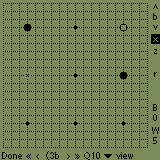
In the screenshot we are at variation "b" – there are two other variations at this point ("a" = "^", and "c" = "v"):
If there are two or more variations, then you will see vertical arrowheads ("^", and/or "v") above and/or below the variation letter. Tap on arrowheads to move between the variations.
Tap on "^" to go "up" to the Previous Variation, and tap on "v" to go "down" to the Next Variation. Both "^" (Previous Variation), and "v" (Next Variation) can also be mapped to a hard button.
Using
"Next" crosses in View mode may be more useful
for moving between variations.
Previous: Introduction, Download, ..., Getting Started Contents Next: The Menus, Handling Variations
HotSync and Palm OS are registered trademarks of Palm, Inc.